
Skip to main content Skip to footer
TripCart
  • Support
  • Login
Start Free Trial
TripCart
  • Tour Operators
  • Rental Companies
  • Boat Tours
  • Attractions
  • Trains
  • Ziplines
  • Farms
  • Customer Stories
Start Free TrialBook a Demo

Create and Manage Tours

  • How to Add Group Discount
  • How to Create a Multi-Day Tour
  • How to Create a Single-Day or Activity Tour?
  • How to Create Tour Packages for Multi-Day and Single-Day/Activities
  • How to add Destinations for Tour?
  • How to Add Activities for Tours
  • What are Add-ons, and How to Use Them?
  • How to Add Accommodations to Tours
  • How to setup Customer’s Account Page
  • How to Enable and Manage Coupon Codes for Tours
  • How to View and Manage Tour Bookings
  • How to Display Reviews for Your Tours
  • How to Set and Manage Difficulty Levels for Tours
  • How to Add and Manage Tour Information
  • How to Import Tours

Tour Settings

  • How to add Meal Options
  • How to edit Traveler Login Page details
  • How to Enable the Deposit Payment Feature
  • How to enable Discount on Full Payment
  • How to Add Tour Highlight
  • How to Block Dates For Tours
  • How to Add WhatsApp Number To Your Tour Detail Page
  • How to set Tour Inquiry Lead Form
  • How to Define Pricing Categories for Tours
  • How to Configure the Currency Settings
  • How to Add Custom Filters

Website Settings

  • How to Customize Colors and Fonts on Your Website?
  • How to Enable the Scroll-to-Top Button
  • How to Add Sections to the Homepage
  • How to Clear Website Cache
  • How to Translate Your Website into a Local Language
  • How to Create and Manage Menus
  • How to Customize the Website Footer?
  • How to Add Meta Titles and Descriptions for the Homepage?
  • How to Configure the Website Header?
  • How to connect your domain

Payment Gateways

  • How to Manage Tax Settings in Tripcart
  • How to configure Getnet Payment Gateway
  • How to configure the Midtrans Payment Gateway
  • How to configure the Revolut Payment Gateway?
  • How to configure the Global IME Payment Gateway
  • How to configure the Xendit Payment Gateway
  • How to configure the RazorPay Payment Gateway
  • How to Add a Custom Booking Link for Your Tours
  • How to Set Up a Payment Reminder for Due Amounts
  • How to Create Custom Payment Links for Bookings or Invoice
  • How to Enable and Use the Booking Fee Feature
  • How to Configure HBL Payment Gateway
  • How to Configure Authorize.net Payment Gateway
  • How to Configure Payment Settings for Checkout
  • How to Configure Stripe Payment Gateway
  • How to Configure PayPal Payment Gateway
  • How to Configure Cybersource Payment Gateway
  • How to Configure Nabil Bank Payment Gateway
  • Book Now and Pay later

Email Notifications

  • How to Set Up Email Notifications for Customers
  • How to Configure SMTP for Your Website
  • How to Customize the Header and Footer for Emails

Pages and Posts

  • How to Create Pages?
  • How to Publish Blog Posts on Your Site?
  • How to Add Categories and Assign Them to Posts?
  • How to add FAQs Block using Text Editor?

Apps

  • Tools
  • Reviews
  • Form Builder

Account Settings

  • How to Add or Remove Team Members
  • How to Update Your Company Information
  • How to Update Your Profile Information

FAQs

  • How to Check File Storage Usage and Email Quotas?
  • What is a Workspace, and How to Create One?
  • How to Update the Website Footer Copyright

SEO Settings

  • How to Add SEO Meta Titles and Descriptions to Default Pages
  • How to Analyze the SEO Score for Tours, Posts, and Pages
  • How to Enable or Disable Breadcrumbs on Your Website
  • How to Update the URL Structure for Default Pages

Tools

  • How to Integrate Google Translate
  • How to create API Keys
  • How to add Travel Insurance
  • How to create Webhooks
  • How to configure the Checkout Form Editor?
  • How to use the Reusable Blocks?
  • How to configure the White Label
  • How to Create and Embed Forms on Your Website
  • How to Bulk Import Redirections Easily
  • How to add a Notice Bar
  • How to add the Altitude Chart in Tour Itinerary
  • How to add Itinerary Info
  • How to Configure a Cookie Consent Notice for Your Website
  • How to Integrate reCAPTCHA for Bot Protection
  • How to Add Custom CSS to Your Website
  • How to Add Scripts (e.g., Google Analytics) to Your Website
  • How to Set Up Redirection for Your Site

Import

  • How to import WP Travel Engine trips
  • How to import WordPress Posts and Pages

Payments and Billing

  • How to upgrade or downgrade your plan
  • How to download your invoice
  • How to cancel your plan
View Categories
  • Home
  • Documentation
  • SEO Settings
  • How to Analyze the SEO Score for Tours, Posts, and Pages

How to Analyze the SEO Score for Tours, Posts, and Pages

2 min read

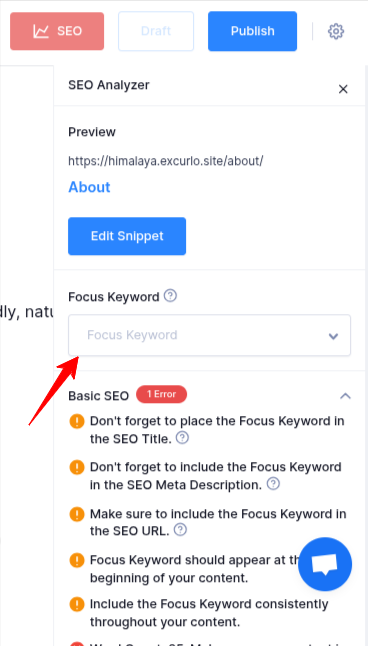
The SEO Analyzer in Tripcart helps you optimize your content for search engines by analyzing key SEO factors. It provides insights on focus keywords, basic and advanced SEO improvements, word count, and readability.

Accessing the SEO Analyzer #

  • Edit a Post or Page: Log in to your Tripcart dashboard and navigate to the post or page you want to optimize.
  • Click on the SEO Button: This opens the SEO settings panel.
  • SEO Analyzer Panel: The SEO Analyzer provides a breakdown of your content’s SEO performance.

SEO Analyzer Sections #

Preview Section #

  • Displays a live preview of how your page will appear in search results, including the SEO title, meta description, and URL.

Focus Keyword #

  • Enter the main keyword you want to rank for.
  • The analyzer provides suggestions based on how well the keyword is used in your content.

Basic SEO #

The tool checks if the focus keyword is properly placed in key areas:

  • SEO Title: Ensure the focus keyword is included.
  • Meta Description: The focus keyword should be present in the description.
  • SEO URL: The URL should contain the focus keyword.
  • Content Placement: The focus keyword should appear at the beginning of the content.
  • Keyword Usage: Ensure the focus keyword appears naturally throughout the content.
  • Word Count: Your content should be at least 600 words for better ranking.

Title Readability #

  • The focus keyword should be placed at the beginning of the SEO title.
  • Consider adding a number in the SEO title to improve click-through rates.

Advanced SEO #

  • Subheadings: Use the focus keyword in H2, H3, and H4 tags.
  • Image Optimization: Ensure the focus keyword is in image alt text.
  • Keyword Density: Aim for around 1% keyword density (currently 0 if missing).
  • URL Length: The analyzer checks if your URL is the right length (51 characters is considered perfect).
  • External Links: Include external links for credibility.
  • DoFollow Links: Make sure to add DoFollow links for relevant resources.
  • Internal Links: Add internal links to improve navigation and SEO.
  • Focus Keyword Reminder: If missing, the analyzer will prompt you to add a focus keyword.
Finalizing SEO Optimizations #

After making improvements, review the analyzer’s feedback and apply changes accordingly. Once done, click Update to update your SEO settings.

By following these recommendations, you can enhance your page’s SEO performance and increase its chances of ranking higher in search results.

📧 If you face any issues or have questions, please reach out to our support team or initiate the chat located on the right.

Updated on February 10, 2026
How to Add SEO Meta Titles and Descriptions to Default PagesHow to Enable or Disable Breadcrumbs on Your Website
Table of Contents
  • Accessing the SEO Analyzer
    • SEO Analyzer Sections
      • Preview Section
      • Focus Keyword
      • Basic SEO
      • Title Readability
      • Advanced SEO
    • Finalizing SEO Optimizations
© 2025 Tripcart. All rights reserved.