
Adding meta titles and descriptions to your homepage is a simple way to improve your site’s SEO and help search engines understand your content better.
This guide will show you step-by-step how to add and customize the meta title and description for your homepage to make it more attractive to both search engines and visitors.
Accessing SEO Settings #
- Go to Your Dashboard
- Expand the Website Settings menu and click Website Builder to open the builder settings.

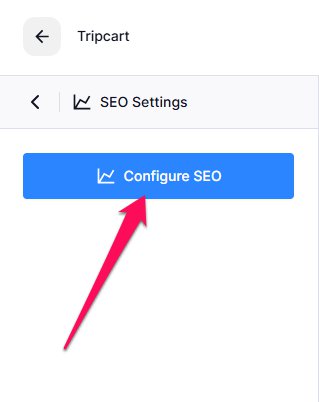
- Navigate to SEO Settings and click on the Configure SEO button.
SEO Settings Window Overview #
Once you click on the SEO button, the SEO settings window will pop up. This window consists of three tabs: General, Social, and Advanced.
General Tab #
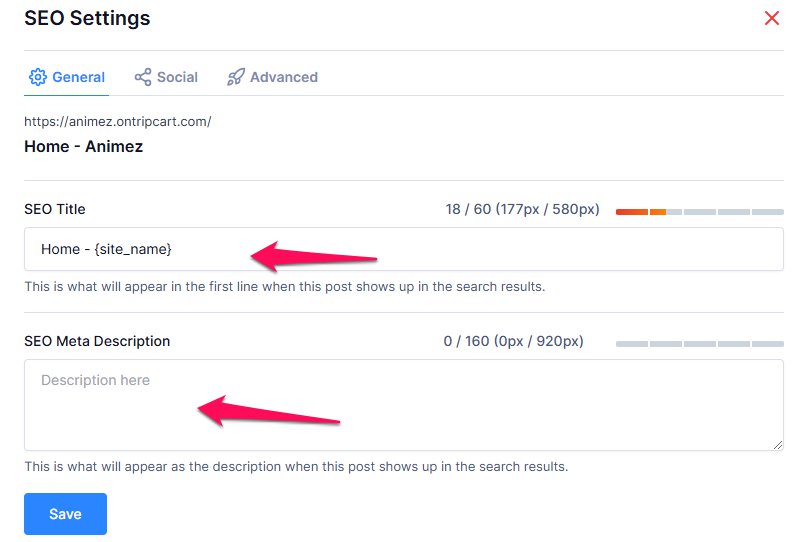
This tab allows you to set up basic SEO information for your website.
- SEO Title: Enter a concise and descriptive title for your site. This title appears in search engine results and browser tabs.
- SEO Meta Description:Provide a brief summary of your website’s content. The meta description will show up below the title in search engine results and helps search engines understand the context of your page.
Social Tab #
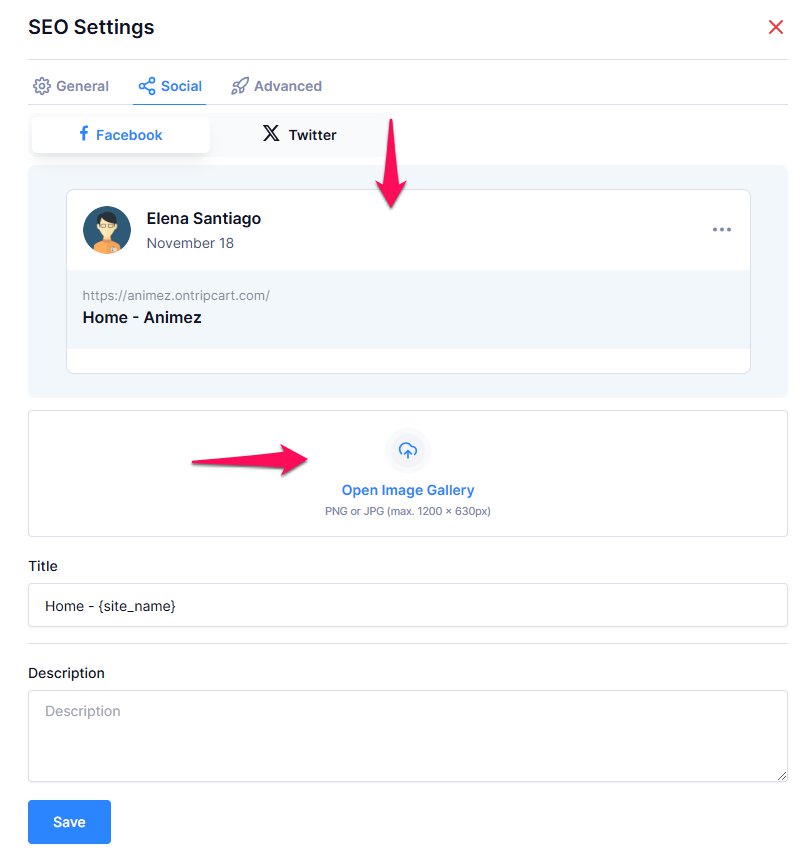
This tab helps you manage how your website will appear when shared on social media platforms like Facebook and Twitter.
Facebook Tab:
- Upload Image: Upload an image that will appear when the page is shared on Facebook.
- Title: Enter the title that will be displayed when the page is shared.
- Description: Provide a brief description that will appear alongside the title.
You can see in the preview how your post will look on Facebook.
Twitter Tab:
- The settings for Twitter are identical to those for Facebook. You can upload an image, add a title and description, and preview how your page will appear when shared on Twitter.
Advanced Tab #
In this tab, you can manage more advanced SEO settings, including how search engines index your page and the canonical URL.
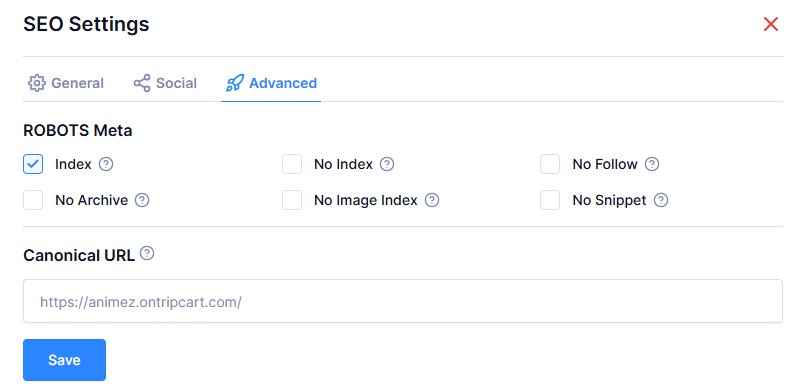
Robot Meta Settings: These settings allow you to control how search engines crawl and index your pages. You can enable or disable the following options:
- Index: Allows search engines to index the page, making it visible in search results.
- No Index: Prevents search engines from indexing the page. This is useful for pages that you don’t want to appear in search results (e.g., thank-you pages, login pages).
- No Follow: Tells search engines not to follow any links on this page. This is useful if you don’t want to pass link authority to the links on this page.
- No Archive: Prevents search engines from storing a cached copy of the page.
- No Image Index: Instructs search engines not to index images on the page.
- No Snippet: Prevents search engines from showing a preview of the page’s content (like a snippet) in search results.
Canonical URL:
- Add the canonical URL to prevent duplicate content issues. This tells search engines which version of a page to consider as the main one, especially if you have multiple pages with similar content.
📧 If you face any issues or have questions, please reach out to our support team or initiate the chat located on the right.