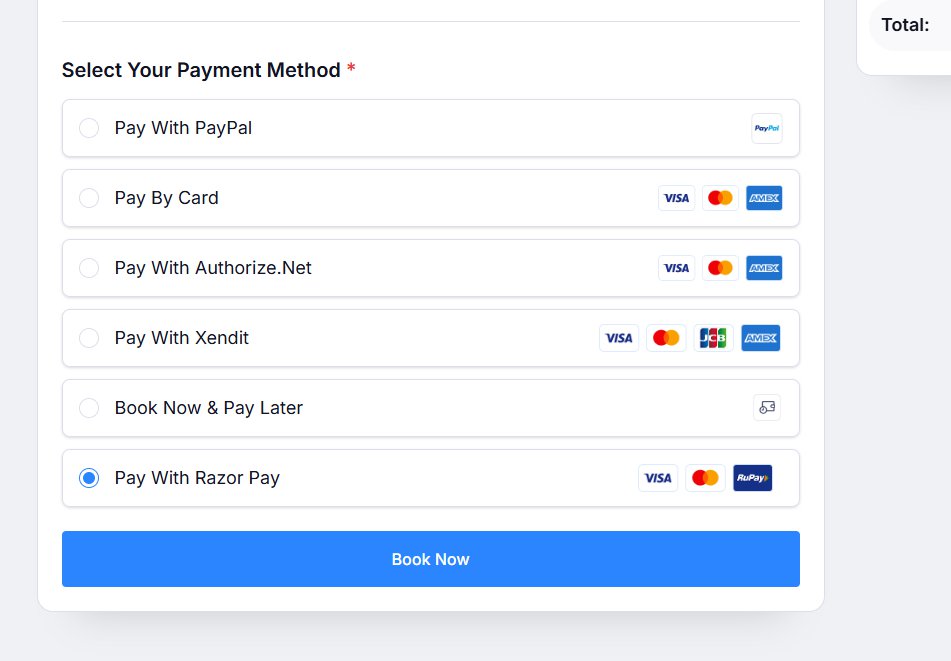
Razorpay is a popular and secure online payment gateway that provides businesses with the ability to accept, process, and manage payments efficiently. Razorpay supports multiple payment options, ensuring flexibility for customers and a broader reach for businesses.
Razorpay primarily supports businesses and payments in India. However, it also allows businesses with international operations to accept payments from global customers using cards. You can check the full list of supported regions on the Razorpay official website.
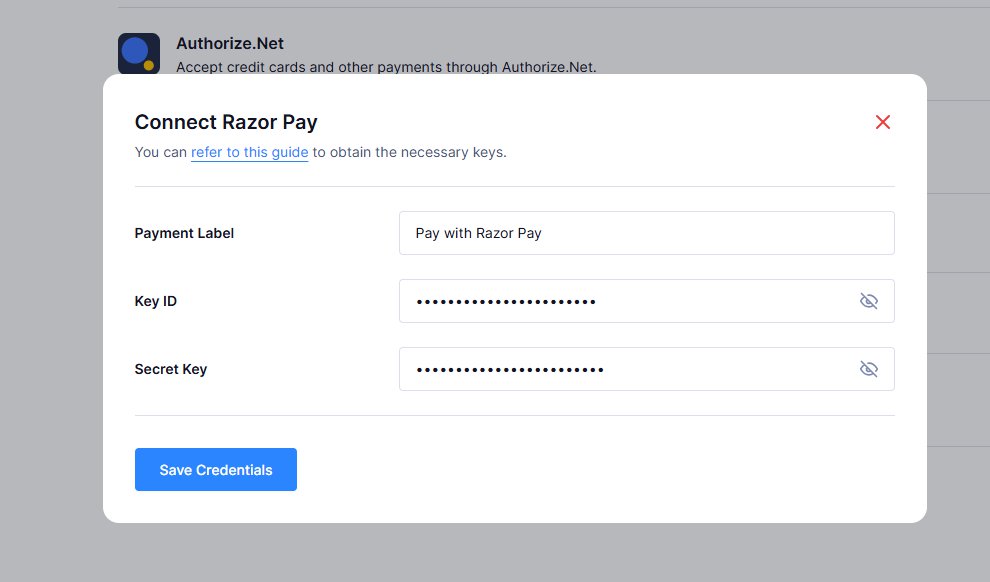
Tripcart has integrated with the RazorPay payment gateway, allowing users to book trips using the Cybersource payment gateway. To configure RazorPay on Tripcart, you will need to add a Payment Label, Key ID, and Secret Key. Follow the steps below to complete the integration.
Steps to Configure RazorPay Payment Gateway #
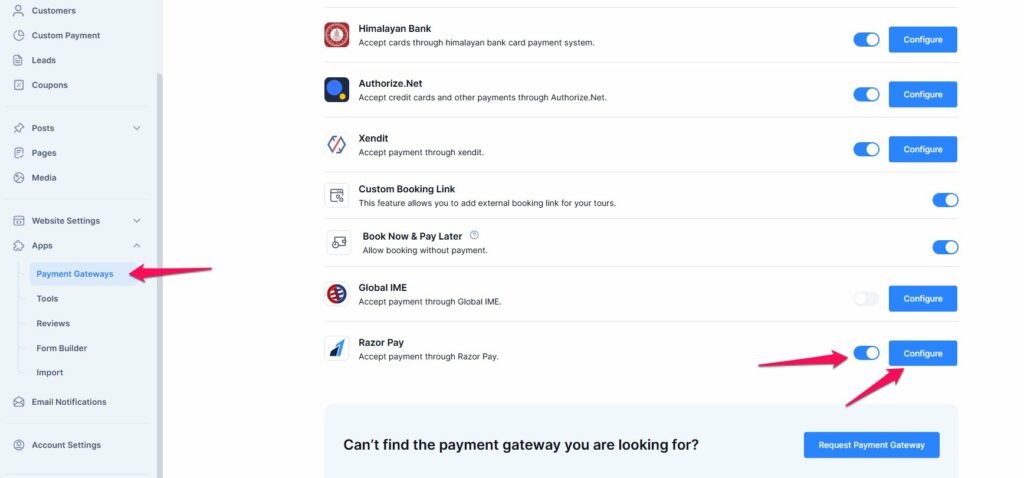
Navigate to Payment Gateways: #
- Go to the Dashboard > Apps.
- Select Payment Gateways.
Enable RazorPay Payment Gateway: #
- Find the RazorPay payment gateway in the list.
- Toggle the switch to enable the RazorPay payment gateway. This will make the RazorPay option appear on the checkout page.
Configure RazorPay: #
- Click on the Configure button next to the RazorPay payment gateway.
- You will be prompted to add the Payment Label, Key ID, and Secret Key. You can find this key by logging into your Razorpay Dashboard and navigating to Settings > API Keys. For more detailed instructions on generating the API Keys in Razorpay Payment Gateway, please refer to their official documentation via this link: Generate and regenerate Test and Live API Keys using the Razorpay Dashboard. Copy the Key ID and Secret Key, then paste them into this field.
- Save the credentials.
Checkout Page Preview #