
Skip to main content Skip to footer
TripCart
  • Support
  • Login
Start Free Trial
TripCart
  • Tour Operators
  • Rental Companies
  • Boat Tours
  • Attractions
  • Trains
  • Ziplines
  • Farms
  • Customer Stories
Start Free TrialBook a Demo

Create and Manage Tours

  • How to Add Group Discount
  • How to Create a Multi-Day Tour
  • How to Create a Single-Day or Activity Tour?
  • How to Create Tour Packages for Multi-Day and Single-Day/Activities
  • How to add Destinations for Tour?
  • How to Add Activities for Tours
  • What are Add-ons, and How to Use Them?
  • How to Add Accommodations to Tours
  • How to setup Customer’s Account Page
  • How to Enable and Manage Coupon Codes for Tours
  • How to View and Manage Tour Bookings
  • How to Display Reviews for Your Tours
  • How to Set and Manage Difficulty Levels for Tours
  • How to Add and Manage Tour Information
  • How to Import Tours

Tour Settings

  • How to add Meal Options
  • How to edit Traveler Login Page details
  • How to Enable the Deposit Payment Feature
  • How to enable Discount on Full Payment
  • How to Add Tour Highlight
  • How to Block Dates For Tours
  • How to Add WhatsApp Number To Your Tour Detail Page
  • How to set Tour Inquiry Lead Form
  • How to Define Pricing Categories for Tours
  • How to Configure the Currency Settings
  • How to Add Custom Filters

Website Settings

  • How to Customize Colors and Fonts on Your Website?
  • How to Enable the Scroll-to-Top Button
  • How to Add Sections to the Homepage
  • How to Clear Website Cache
  • How to Translate Your Website into a Local Language
  • How to Create and Manage Menus
  • How to Customize the Website Footer?
  • How to Add Meta Titles and Descriptions for the Homepage?
  • How to Configure the Website Header?
  • How to connect your domain

Payment Gateways

  • How to Manage Tax Settings in Tripcart
  • How to configure Getnet Payment Gateway
  • How to configure the Midtrans Payment Gateway
  • How to configure the Revolut Payment Gateway?
  • How to configure the Global IME Payment Gateway
  • How to configure the Xendit Payment Gateway
  • How to configure the RazorPay Payment Gateway
  • How to Add a Custom Booking Link for Your Tours
  • How to Set Up a Payment Reminder for Due Amounts
  • How to Create Custom Payment Links for Bookings or Invoice
  • How to Enable and Use the Booking Fee Feature
  • How to Configure HBL Payment Gateway
  • How to Configure Authorize.net Payment Gateway
  • How to Configure Payment Settings for Checkout
  • How to Configure Stripe Payment Gateway
  • How to Configure PayPal Payment Gateway
  • How to Configure Cybersource Payment Gateway
  • How to Configure Nabil Bank Payment Gateway
  • Book Now and Pay later

Email Notifications

  • How to Set Up Email Notifications for Customers
  • How to Configure SMTP for Your Website
  • How to Customize the Header and Footer for Emails

Pages and Posts

  • How to Create Pages?
  • How to Publish Blog Posts on Your Site?
  • How to Add Categories and Assign Them to Posts?
  • How to add FAQs Block using Text Editor?

Apps

  • Tools
  • Reviews
  • Form Builder

Account Settings

  • How to Add or Remove Team Members
  • How to Update Your Company Information
  • How to Update Your Profile Information

FAQs

  • How to Check File Storage Usage and Email Quotas?
  • What is a Workspace, and How to Create One?
  • How to Update the Website Footer Copyright

SEO Settings

  • How to Add SEO Meta Titles and Descriptions to Default Pages
  • How to Analyze the SEO Score for Tours, Posts, and Pages
  • How to Enable or Disable Breadcrumbs on Your Website
  • How to Update the URL Structure for Default Pages

Tools

  • How to Integrate Google Translate
  • How to create API Keys
  • How to add Travel Insurance
  • How to create Webhooks
  • How to configure the Checkout Form Editor?
  • How to use the Reusable Blocks?
  • How to configure the White Label
  • How to Create and Embed Forms on Your Website
  • How to Bulk Import Redirections Easily
  • How to add a Notice Bar
  • How to add the Altitude Chart in Tour Itinerary
  • How to add Itinerary Info
  • How to Configure a Cookie Consent Notice for Your Website
  • How to Integrate reCAPTCHA for Bot Protection
  • How to Add Custom CSS to Your Website
  • How to Add Scripts (e.g., Google Analytics) to Your Website
  • How to Set Up Redirection for Your Site

Import

  • How to import WP Travel Engine trips
  • How to import WordPress Posts and Pages

Payments and Billing

  • How to upgrade or downgrade your plan
  • How to download your invoice
  • How to cancel your plan
View Categories
  • Home
  • Documentation
  • Website Settings
  • How to Configure the Website Header?

How to Configure the Website Header?

3 min read

The header is one of the most important parts of your website as it displays your branding, navigation, and essential contact information.

This guide will walk you through the steps to customize your header, including adding your logo, setting up the navigation menu, and adjusting the design to match your style

Access Header Settings #

  • Go to your Dashboard.
  • Expand the Website Settings menu and click Website Builder to open the builder settings.
  • Navigate to the Header section.

Configure Content Tab #

The Content tab lets you manage branding, navigation, and contact details.
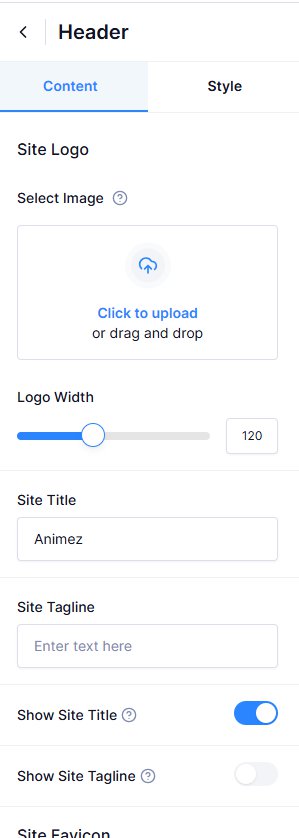
Site Logo:

  • Select Image: Add your site logo by uploading an image or choosing one from your media library.
  • Image Width: Use the slider to make the logo bigger or smaller.

Site Title and Tagline:

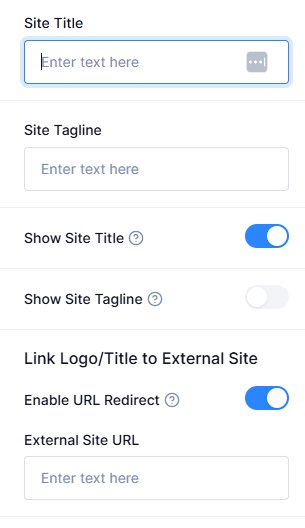
  • Site Title: Enter the name of your website (e.g., “My Travel Blog”).
  • Site Tagline: Add a short description or slogan (e.g., “Explore the World with Us”).
  • Show Site Title: Toggle this option to show or hide the site title in the header.
  • Show Site Tagline: Toggle this option to show or hide the tagline below the title.
  • Link Logo/Title to External Site: Turn on the toggle to link the site logo to a different URL. Once enabled, an option will appear for you to enter an external link.
Favicon:

  • Select Image: Upload a small image that represents your website. This icon appears in browser tabs.

Navigation Menu:

  • Choose Navigation Menu: Select the menu to display in your header. This menu helps visitors navigate your site.
  • Sticky Menu: Enable or disable the sticky menu to keep it fixed at the top of the page when scrolling, ensuring constant accessibility.

Contact Information:

  • Email: Enter the email address to display in the header, increasing accessibility for visitors to contact you.
  • Phone Number: Add a phone number for direct contact.

Social Network:

  • Social Network: Add links to your social media profiles, enabling visitors to connect with you on various platforms.

Header Button:

  • Button Label: Enter the text for the button (e.g., “Contact Us” or “Sign Up”).
  • Button URL: Provide the URL the button should link to, guiding visitors to important pages or actions.

Configure Style Tab #

From the Style tab, you can modify the appearance of your header:
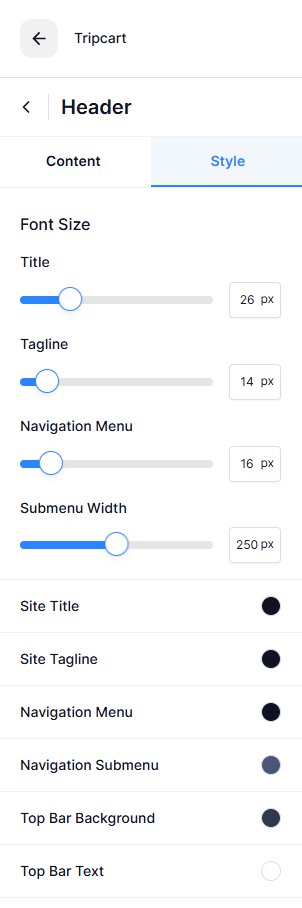
Font Size:

  • Adjust the font size for Site Title, Tagline, Navigation Menu, and Submenu using sliders.

Colors:

  • Site Title: Set the color of your website name.
  • Site Tagline: Choose a color for your site tagline.
  • Navigation Menu: Pick a color for the menu text.
  • Navigation Submenu: Choose colors for submenu items.
  • Top Bar Background: Set the background color of the top bar.
  • Top Bar Text: Choose a text color in the top bar.
  • Contact Icons: Select colors for your contact icons.
  • Social Icons: Set the color for social media icons.
  • Main Bar Background: Select the background color for the main header area.
  • Button Background: Choose the color for the button background.
  • Button Text: Set the color for button text.

Custom CSS:
Add custom CSS for advanced styling and unique design elements beyond the provided options.

📧 If you face any issues or have questions, please reach out to our support team or initiate the chat located on the right.

Updated on June 11, 2025
How to Add Meta Titles and Descriptions for the Homepage?How to connect your domain
Table of Contents
  • Access Header Settings
  • Configure Content Tab
  • Configure Style Tab
© 2025 Tripcart. All rights reserved.