
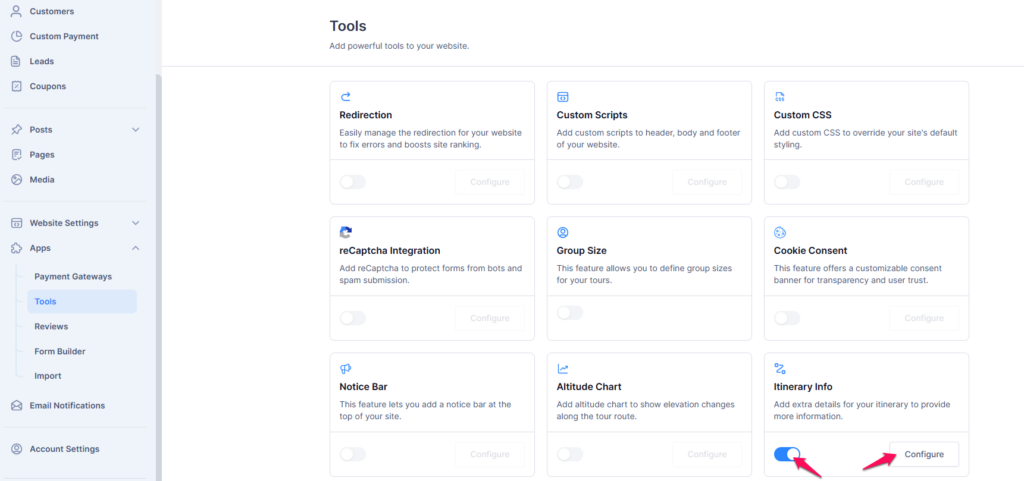
The Itinerary Info feature in Tripcart allows you to include key details about your tours, such as trek distance, highest altitude, trek duration, and transportation. This additional feature can be enabled via the Dashboard > Apps > Tools section. Follow the steps below to activate and configure the Itinerary Info feature.
Step 1: Enable the Itinerary Info Tool #
- Go to the Dashboard.
- Navigate to Apps > Tools.
- Locate the Itinerary Info feature.
- Enable the toggle switch to activate the tool.
- Click the Configure button to customize the settings.
Step 2: Configure Itinerary Info #
- In the configuration page, you will find three predefined itinerary fields:
- Trek Distance
- Highest Altitude
- Trek Duration
- Transportation
- You can add additional itinerary details by clicking + Add New.
- Use the Icon Selector to choose an icon that represents each itinerary info.
- Enable or disable specific fields using the toggle switch in the Action column.
- Click Save to apply changes.

Step 3: Add Itinerary Info to a Tour #
- Navigate to Dashboard > Tours > All Tours.
- Select a tour from the list.
- Click on the Itinerary tab.
- Locate the Itinerary Info section.
- Enter the required details of each field
- If you need additional fields, add them using the + Add New option.
- Click Update to save changes.
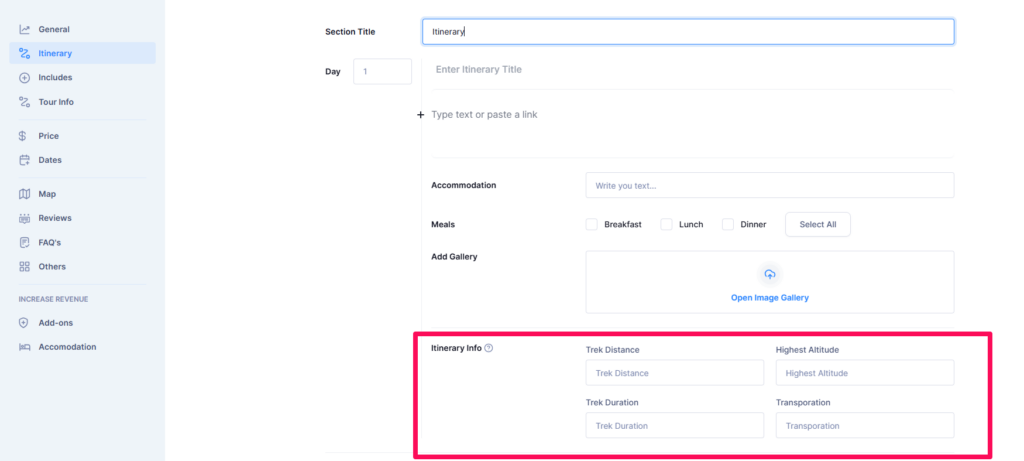
By following these steps, you can successfully add Itinerary Info to your tour, providing essential details for travelers to better understand their journey.