
Tripcart provides a flexible Email Notification System that allows tour operators to automate and customize email communications with customers. This feature enables users to configure and personalize various email notifications, including booking confirmations, abandoned cart reminders, tour reminders, and post-tour follow-ups.
Accessing Email Notification Settings #
- Log in to your Tripcart Dashboard.
- Navigate to Email Notifications.
- You’ll find multiple tabs:
- Notifications
- Settings
- Email Header/Footer
- Email Logs
- Click on the Notifications tab to manage automated email communications.
Managing Email Notifications #
The Notifications section allows users to enable, edit, and personalize different types of automated emails. Below is an overview of the key options available.
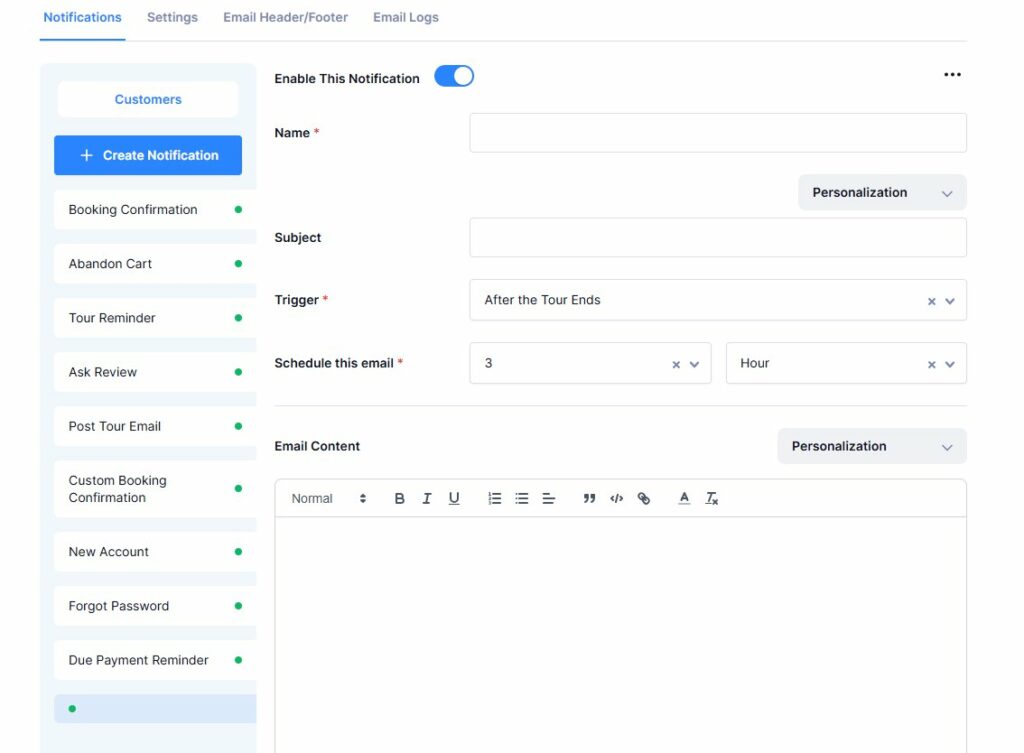
1. Creating a New Notification #
- Click the + Create Notification button.
- You can click on the toggle to enable/disable the notification.
- Enter a Name for the notification.
- Set the Subject Line for the email.
- Choose a Trigger Event – currently, you can select from:
- After the Tour Ends
- When the Tour is Booked
- Before the Tour Starts
- Schedule the Notification:
- Select a duration and time period (e.g., hours, minutes).
- Example: If you set the trigger to Before the Tour Starts and schedule it for 3 hours, the email will be sent 3 hours before the tour begins.
- Write and format the Email Content using the rich text editor.
- Use the Personalization dropdown to add dynamic fields (e.g., customer name, tour details).
2. Editing an Existing Notification #
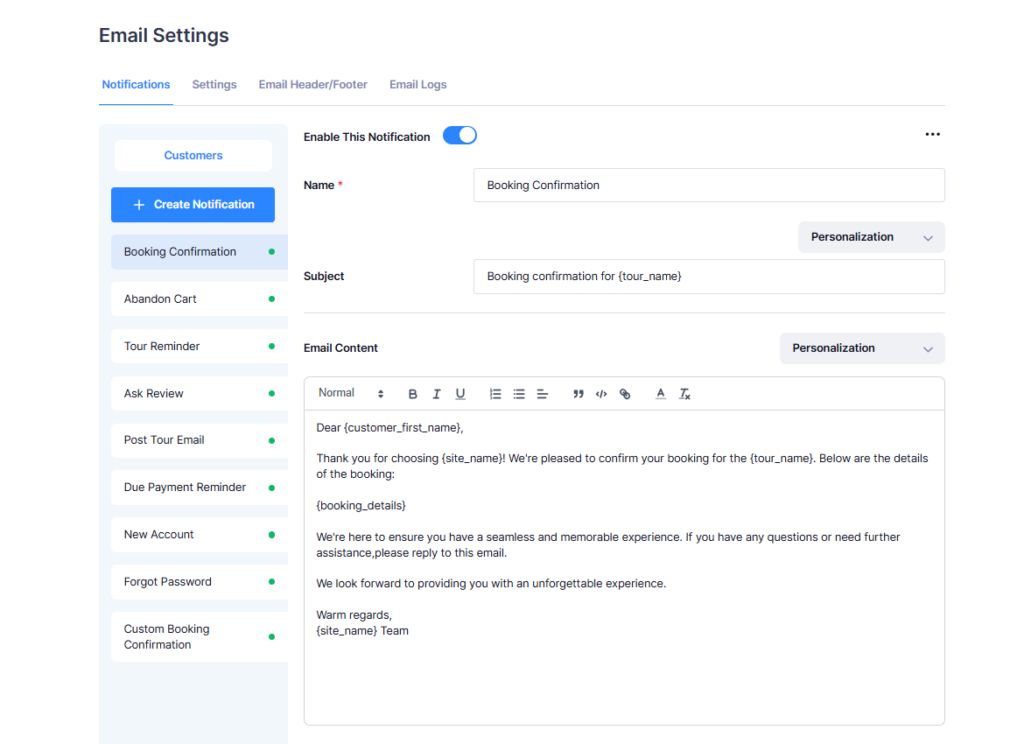
- Select an email type from the left panel (e.g., Booking Confirmation, Tour Reminder).
- Toggle the switch to Enable/Disable the notification.
- Modify the Subject and Email Content as needed.
- Save changes to update the email template.
How to Test Email Notifications: #
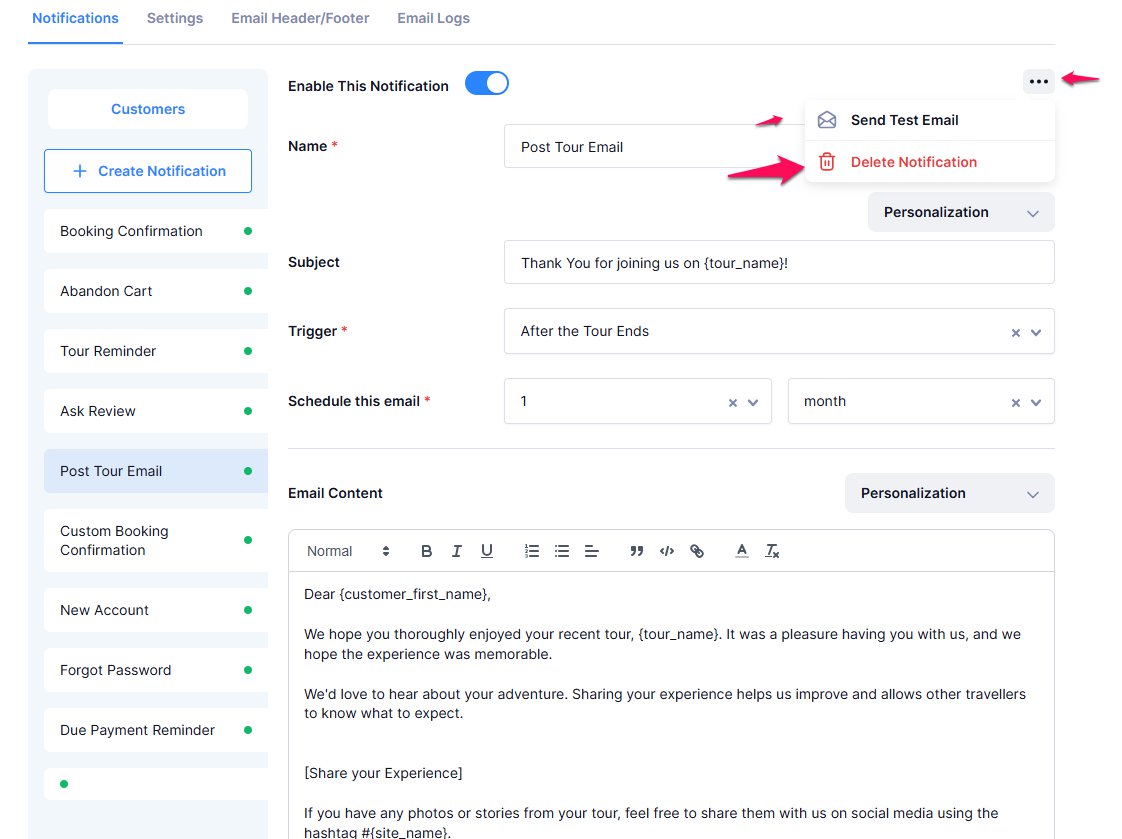
Click on the vertical three dots on the top right. You will get two options:
- Send Test Email: To test the Email Notifications
- Delete Notification: You can delete the Notification from here.
📧 If you face any issues or have questions, please reach out to our support team or initiate the chat located on the right.