
Organizing your content with categories in Tripcart is a simple and effective way to help your audience navigate your site and find relevant posts.
In this guide, you’ll learn how to create categories step-by-step, assign them to your posts, and organize your content efficiently. This ensures your site stays user-friendly and well-structured, improving both user experience and search engine optimization.
Add a New Category #
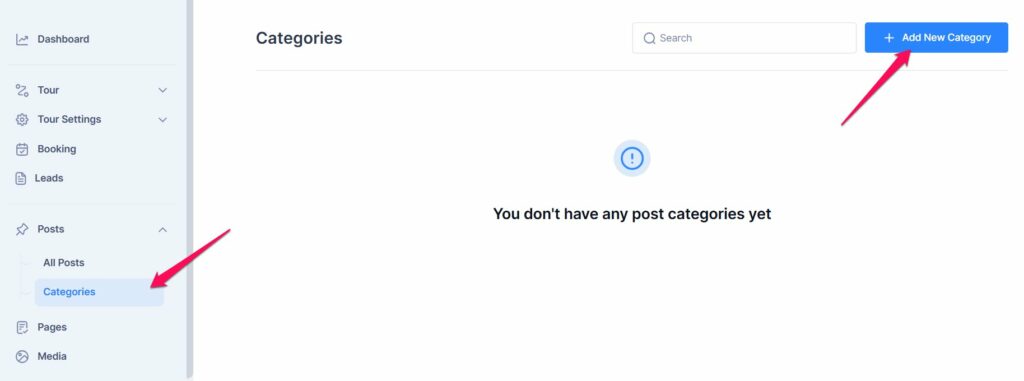
- Go to your Dashboard.
- Navigate to Posts > Categories in the Dashboard menu.
- Click Add New Category button
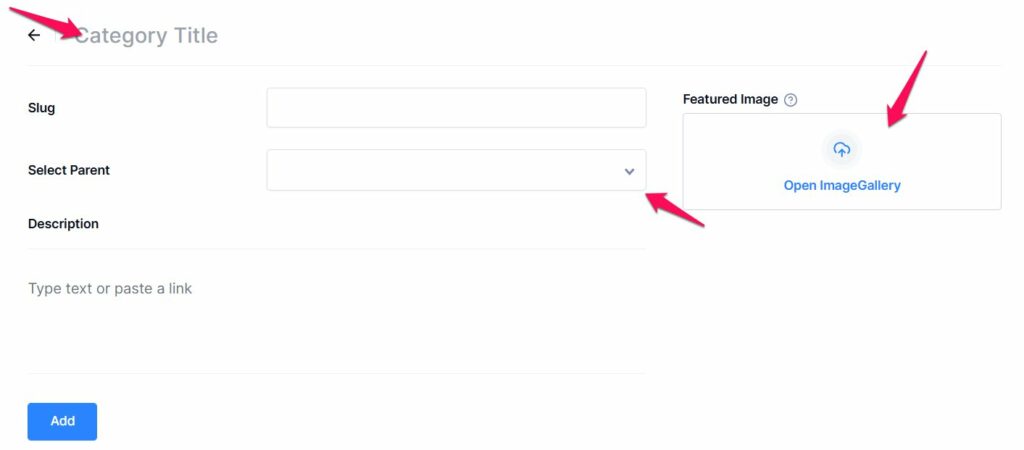
- In the “Add New Category” :
- Enter the name of the category in the Name field.
- Add a Slug (optional) and Featured Image
- If the category is a subcategory, select a Parent Category from the dropdown menu.
- Provide a description (optional) to explain the purpose of the category.
- Click “Add” button to save it.
Assign Categories to Posts #
- Go to Posts > All Posts in the dashboard menu.
- Locate the post you want to edit and click on its title or the Edit link.
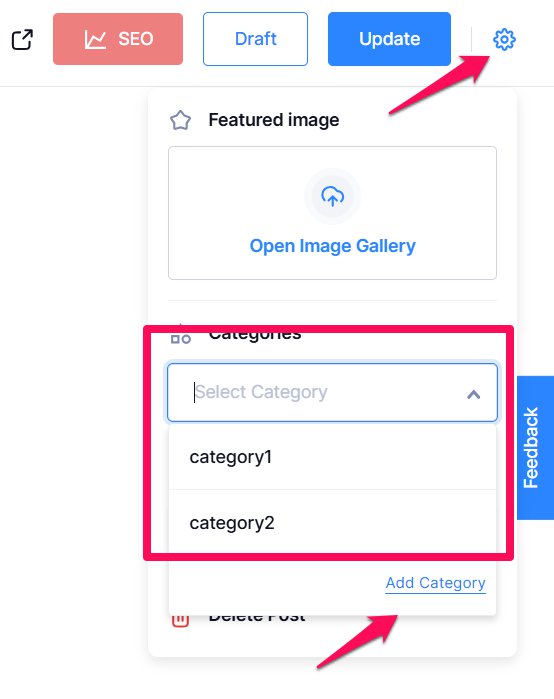
- In the post editor, click on the Settings icon in the top-right corner to open post settings.
- In the Categories section:
- Assing the categories you want to the post.
- To create a new category on the fly, click Add Category.
- Save your changes.
📧 If you face any issues or have questions, please reach out to our support team or initiate the chat located on the right.