
To view and manage your tours, follow these steps:
- Log in to your Tripcart Dashboard.
- Navigate to Bookings in the main menu.
Within the Bookings section, you will find three different settings for managing your tours:
- All Bookings
- Custom Bookings
- Upcoming Tours
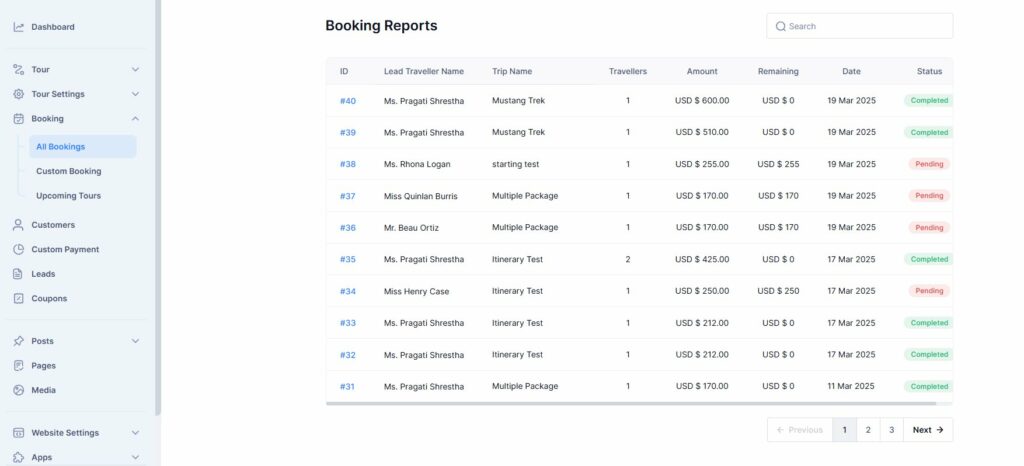
All Bookings #
The All Bookings section provides a comprehensive list of all bookings, including both past and present reservations. This section allows you to track and manage every booking made through your platform.
Information Displayed: #
Each booking record will display the following details:
- Booking ID – A unique identifier for each booking.
- Lead Traveller Name – The primary contact person for the booking.
- Trip Name – The name of the tour associated with the booking.
- Travellers – Number of travellers
- Amount – The total amount paid for the booking.
- Remaining– Remaining amount to pay.
- Date – The date when the booking was made.
- Payment Status – The current payment status (e.g., Completed, Partial Paid, Pending, or Cancelled).
This section allows you to monitor all booking activities and manage customer records efficiently.
2. Custom Bookings #
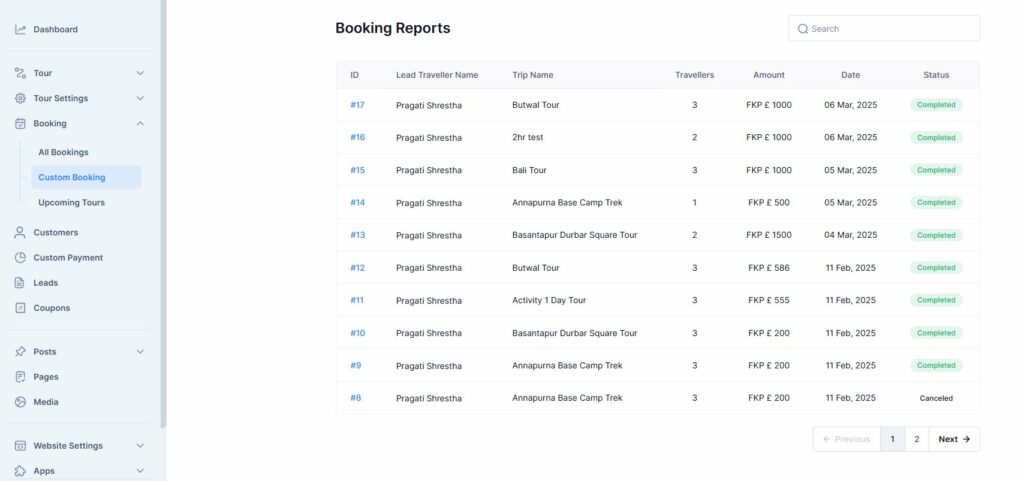
The Custom Bookings section displays a list of bookings made via the Custom Payment feature. This feature allows you to accept personalized or offline payments outside the standard online payment gateway.
Information Displayed: #
- Booking ID: A unique identifier for each booking.
- Lead Traveller Name :The primary contact person for the booking.
- Trip Name: The name of the tour associated with the booking.
- Amount : The total amount paid for the booking.
- Date : The date when the booking is made.
- Payment Status: The current payment status (e.g., Completed, Partial Paid, Pending, or Cancelled).
Use this section to track and manage special payment arrangements and ensure accurate records for non-standard bookings.
3. Upcoming Tours #
The Upcoming Tours section provides an overview of future tours and their associated bookings. This section is useful for planning and managing upcoming events.
Information Displayed: #
- Date: Displays the date of the upcoming tours.
- Travellers: Indicates the number of travellers.
- Tour Name: Shows the name of the tour.
- Click on View Details to view detailed booking information.
You can view and track both current and future bookings under this section, ensuring seamless management of upcoming tours.
Managing Bookings #
From each section, you can perform the following actions:
- View Booking Details – Click on any booking to see in-depth information.
- Update Payment Status – Modify payment status if necessary.
- Manage Customer Information – Edit or update customer details.
- Filter Bookings – Use search and filter options to quickly locate specific bookings.
By effectively utilizing these settings, you can maintain a well-organized and efficient tour management system using Tripcart.
📧 If you face any issues or have questions, please reach out to our support team or initiate the chat located on the right.