
Tripcart has integrated with Stripe’s payment gateway, allowing users to book trips using Stripe. To configure Stripe on Tripcart, you will need to add a Publishable key and a Secret Key. Follow the steps below to complete the integration.
Navigate to Payment Gateways: #
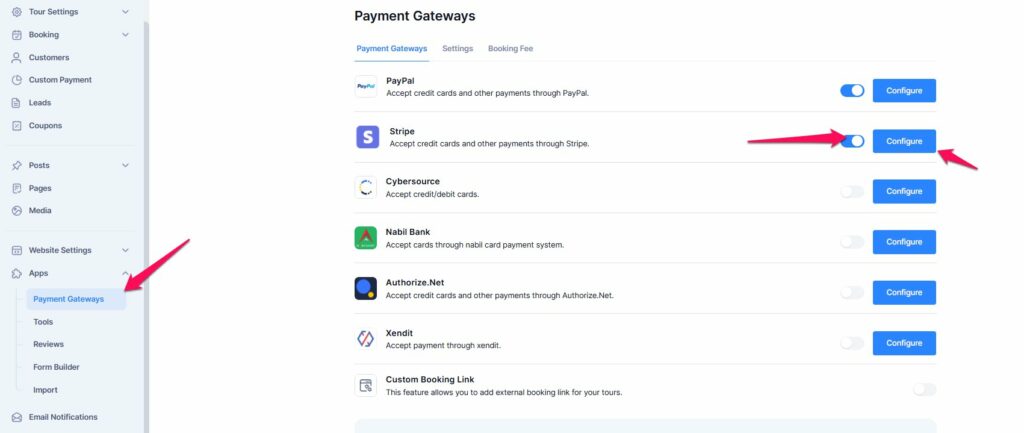
- Go to the Dashboard > Apps.
- Select Payment Gateways.
Enable Stripe Payment Gateway: #
- Find the Stripe payment gateway in the list.
- Toggle the switch to enable the Stripe payment gateway. This will make the Stripe option appear on the checkout page.
Configure Stripe: #
- Click on the Configure button next to the Stripe payment gateway.
- You will be prompted to add the Publishable key and Secret key.

How to obtain Publishable key and Secret key: #
Stripe provides two types of API keys for integrating payments: Publishable Key and Secret Key. These keys allow developers to process payments, manage transactions, and interact with Stripe’s services. Follow the steps below to obtain these keys.
- Visit Stripe’s official website.
- Click Sign In at the top right corner.
- Enter your email and password, then click Continue.
- Complete any two-factor authentication (if enabled) to access your account.
- Once logged in, navigate to the Developers section from the left menu.
- Click on API Keys under the Developers menu.

- Once you have obtained the Publishable key and Secret key from Stripe, enter them in the respective fields on the Tripcart configuration page.
- Click Save Credentials to save the information.
How to obtain Webhooks Signing Secret: #
A webhook is a way for one application (or system) to send real-time data to another application automatically when something specific happens.
Stripe sends a webhook notification to a specified URL whenever an event like a successful payment occurs. To ensure these notifications are genuine, Stripe provides a signing secret when you set up your webhook URL in the Stripe dashboard. This secret allows your website to verify that incoming requests truly came from Stripe, protecting against fake or unauthorized webhook attempts.
Follow the steps below to obtain the Webhooks Signing Secret:
- Go to Stripe Dashboard and log in to your account.
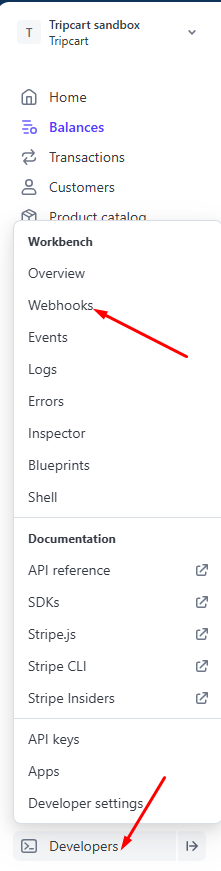
- From the left-hand menu, click on Developers.
- Under Developers, select Webhooks.
- Click the “Add endpoint” (or “Add destination”) button.

- Choose the account this destination should listen to.
- Select your preferred API version.
- Tripcart currently supports the following webhook events. Add each one individually:
payment_intent.succeededpayment_intent.processingpayment_intent.payment_failedpayment_intent.canceledcheckout.session.completed
- After adding all the events, click Continue.
- Enter a Destination Name of your choice.
- For the Endpoint URL, go to your Tripcart dashboard and copy the Webhook Endpoint URL from Stripe settings.

- Now Endpoint URL and create a destination.
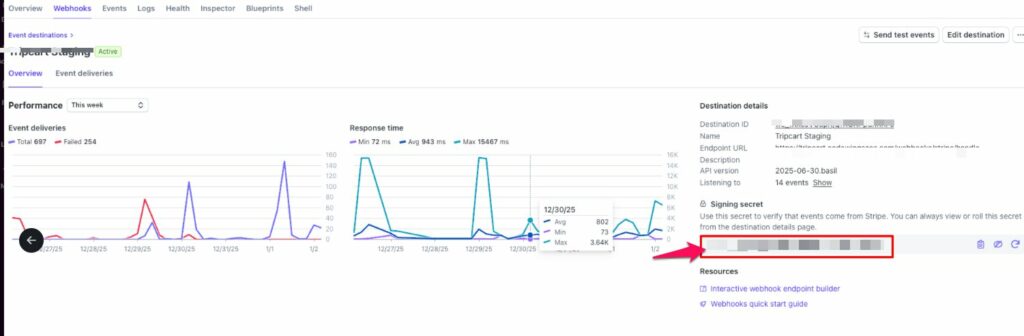
- Once created, Stripe will display a Signing Secret for the webhook.
- Copy the Signing Secret key provided by Stripe.
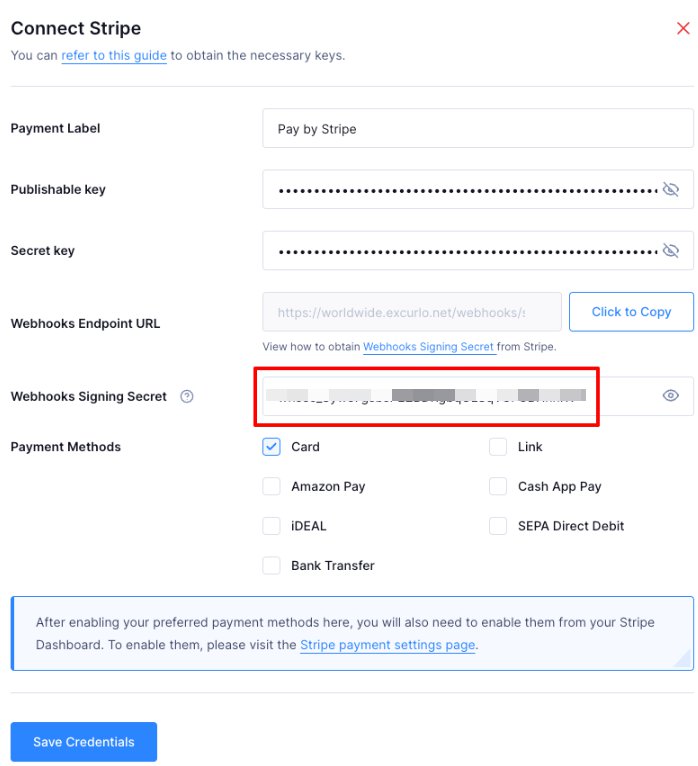
- Go back to your Tripcart dashboard and paste the secret key into the Webhook Signing Secret Key field.
Stripe Payment Methods Support #
Stripe now offers a range of new and region-specific payment methods, designed to provide a more flexible and localized checkout experience for both businesses and their customers. We have also integrated some of these payment methods in Tripcart. Provides the full suite of Stripe-supported payment methods:
- Bank Transfer
- Cards
- Link
- iDEAL
- SEPA Direct Debit
- Cash App Pay
- Amazon Pay

To display these payment options at checkout, you must first enable them from your Stripe dashboard. Additionally, ensure that your Stripe account is configured with the appropriate presentment currency, as the availability of certain payment methods depends on it.
Please note:
- Card and Link are available for all the currencies supported by the stripe.
- iDEAL and SEPA Direct Debit are only available for EUR presentment currencies.
- Cash App Pay, Amazon Pay, and Bank Transfer are only available for USD presentment currencies.

- After enabling these payment gateways, you’ll also need to activate them in the Stripe settings under Tripcart to ensure they appear on the checkout page.
By following these steps, you will have successfully configured the Stripe payment gateway for Tripcart, allowing users to book their trips using Stripe.
📧 If you face any issues or have questions, please reach out to our support team or initiate the chat located on the right.