
Setting up redirection in Tripcart helps you manage URL changes efficiently and improve user experience. Follow these steps to enable and configure redirections.
Accessing Redirection Settings #
- Log in to the Tripcart Dashboard.
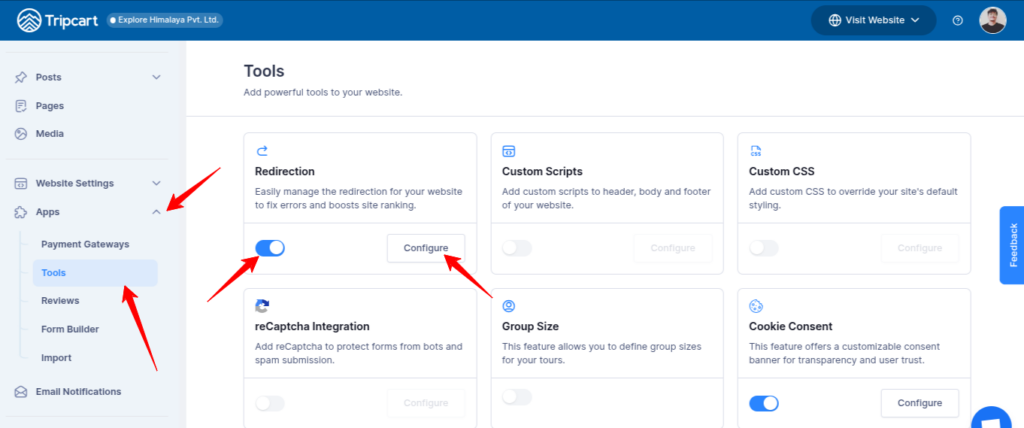
- In the left sidebar, navigate to Apps > Tools.
- Locate the Redirection option.
- Toggle the switch to Enable redirections.
- Click the Configure button to proceed.
Adding a New Redirection #
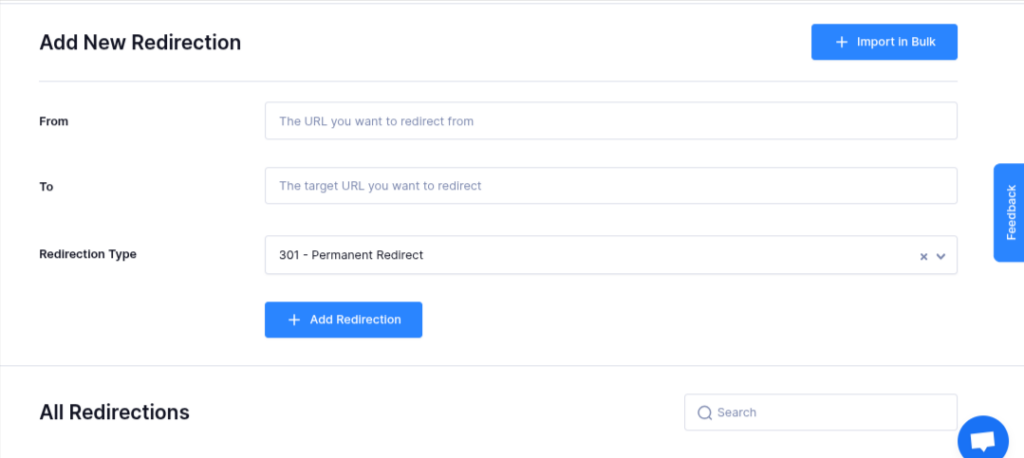
- Click on Add New Redirection.
- Enter the required details:
- From: The original URL that needs to be redirected.
- To: The new destination URL.
- Redirection Type: Select the type of redirection (e.g., 301 Permanent, 302 Temporary).
- Click Add Redirection to save the changes.
Managing and Searching Redirections #
- All created redirections will appear in the All Redirections list.
- Use the Search Box to find specific redirections quickly.
- You can edit or remove existing redirections as needed.
By following these steps, you can effectively manage redirections and maintain a smooth user experience on your site.
📧 If you face any issues or have questions, please reach out to our support team or initiate the chat located on the right.