
The FAQs (Frequently Asked Questions) Block helps you provide clear and organized answers to common questions, improving user experience and reducing repetitive inquiries. Displaying a dedicated FAQ section on your site can enhance trust, aid in decision-making, and support SEO by including keyword-rich content.
How to Add the FAQs Block #
You can add the FAQs block to any Tour, Page, Post, Destination, or Activities using the following method
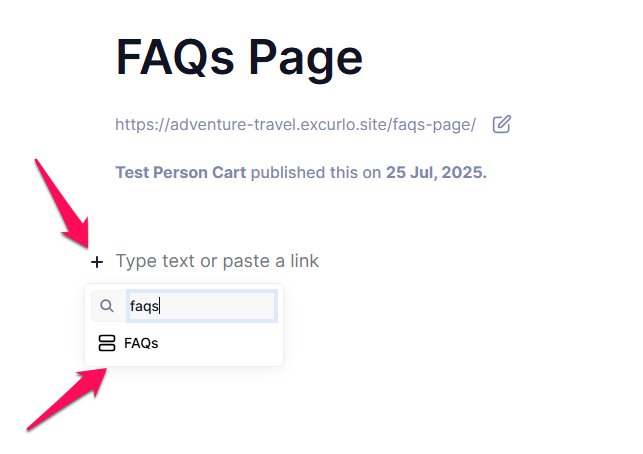
- Click the “+” icon on the editor and search for FAQs.
- Or, type
/faqsdirectly into the block editor to trigger the search and select the FAQs block from the list.
Configuring the FAQs Block #
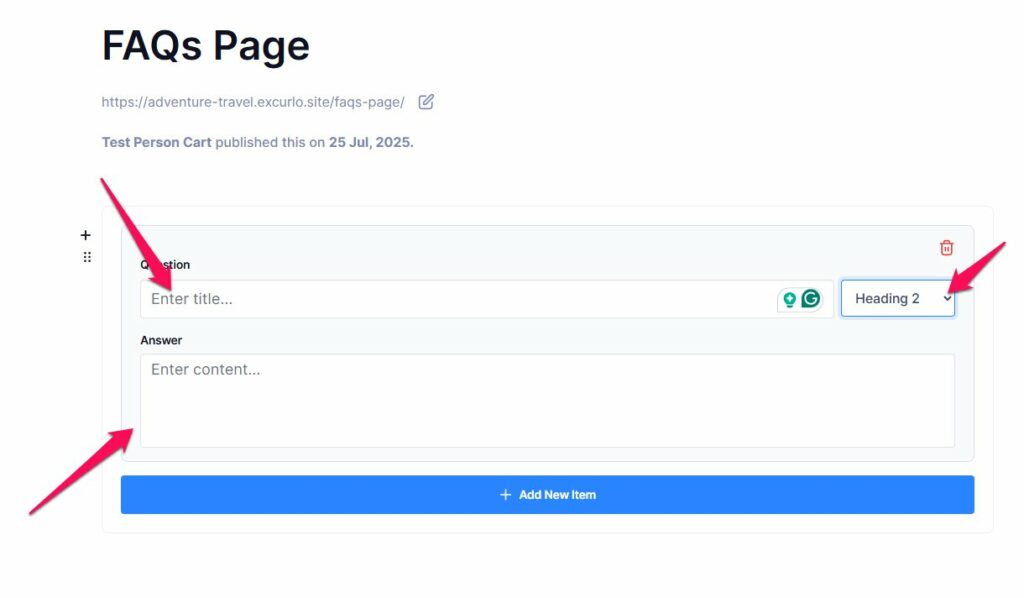
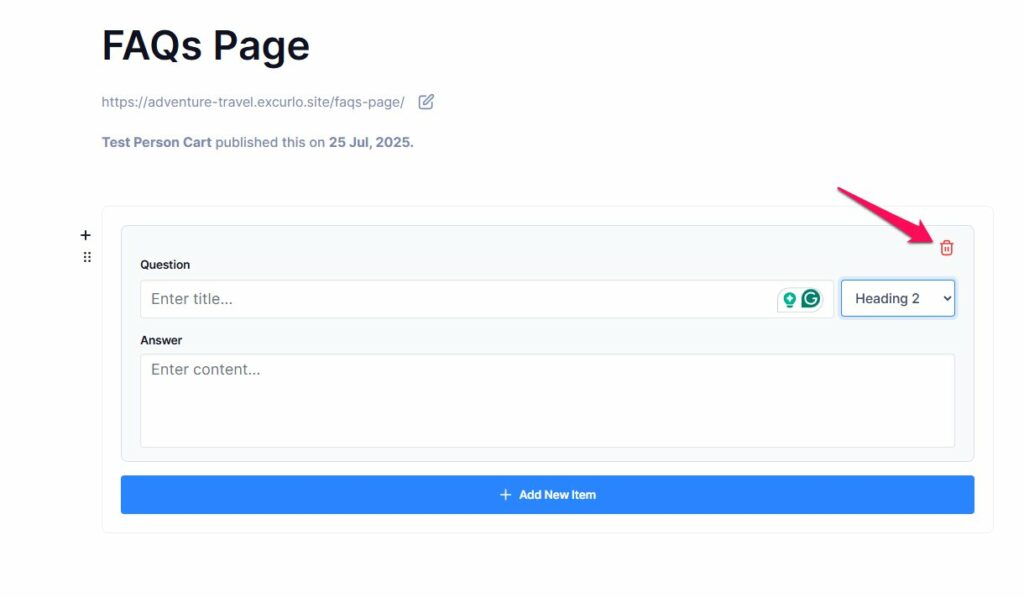
Once the FAQs block is added, you will see the following fields:
- Question: Enter the question your users may have.
- Answer: Provide a clear, concise answer to the question.
- Display Options: You can choose a different heading tag for the FAQs title.
Adding Multiple FAQs Items #
To add more questions and answers:
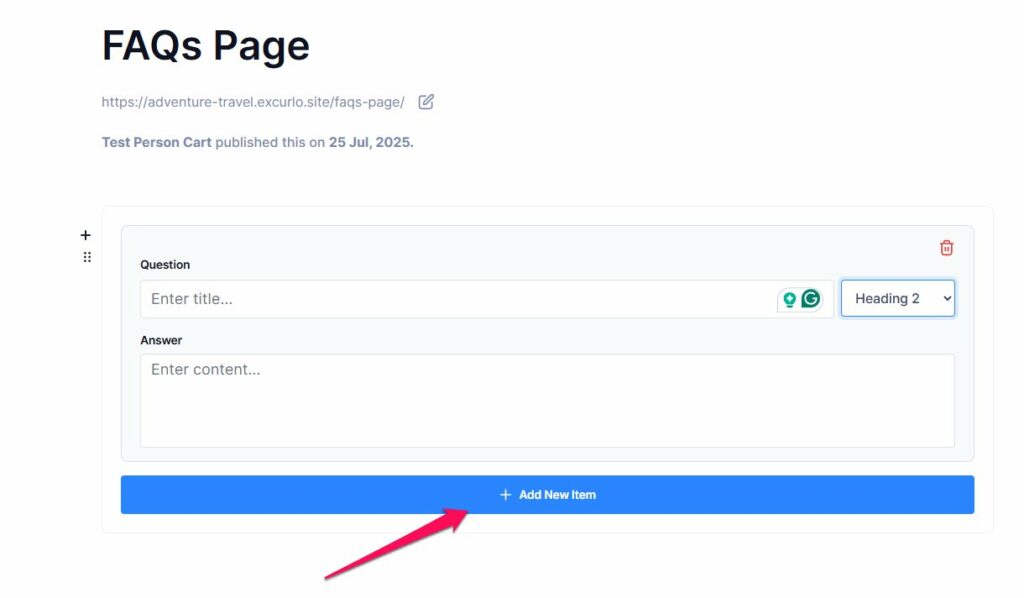
- Click the + Add New Item button inside the block.
- This will create additional fields where you can continue adding FAQ entries as needed.
Formatting FAQ Content #
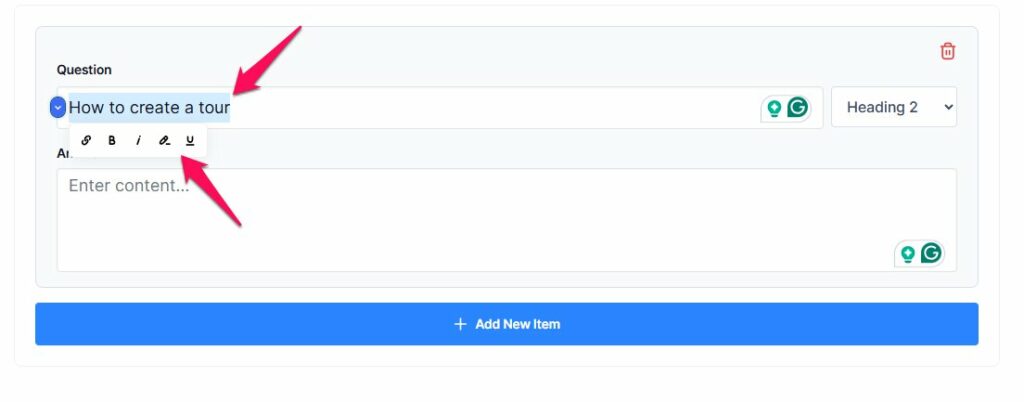
You can format your text within the Answer field to make it more visually engaging and easier to read. Available formatting options include:
How to format text:
- You need to select a text, a pop-up toolbar will appear with options to:
- Bold the text
- Italicize it
- Underline
- Highlight using a marker
- Insert a clickable link
These tools help you emphasize key information and guide users more effectively.
Deleting FAQs Items #
If you want to remove an FAQ entry:
- Click the Delete (trash) icon next to the item you wish to remove.
- The selected question and answer will be permanently deleted from the list.
📧 If you face any issues or have questions, please reach out to our support team or initiate the chat located on the right.