The Custom Booking Link feature allows tour agencies to redirect customers to an external booking system or a custom HTML page instead of using the default booking process. This is useful for agencies using third-party booking platforms or integrating with external reservation systems.
Step 1: Enable the Custom Booking Link #
- Log in to your admin panel.
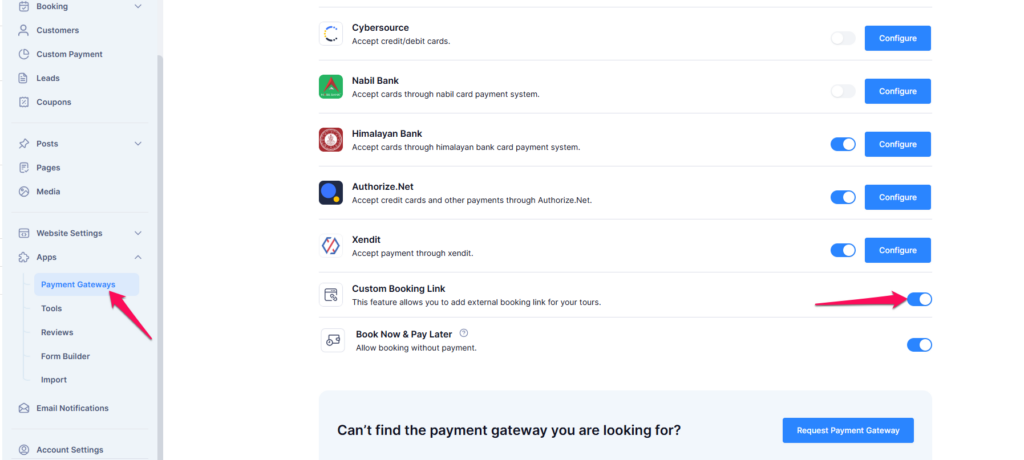
- Navigate to Apps from the left sidebar.
- Click on Payment Gateways.
- Find Custom Booking Link in the list of payment gateways.
- Toggle the switch to Enable the Custom Booking Link feature.
Step 2: Add a Custom Booking Link to a Tour #
- Navigate to Dashboard > Tours > All Tours.
- Click Add New to create a new tour or edit an existing one.
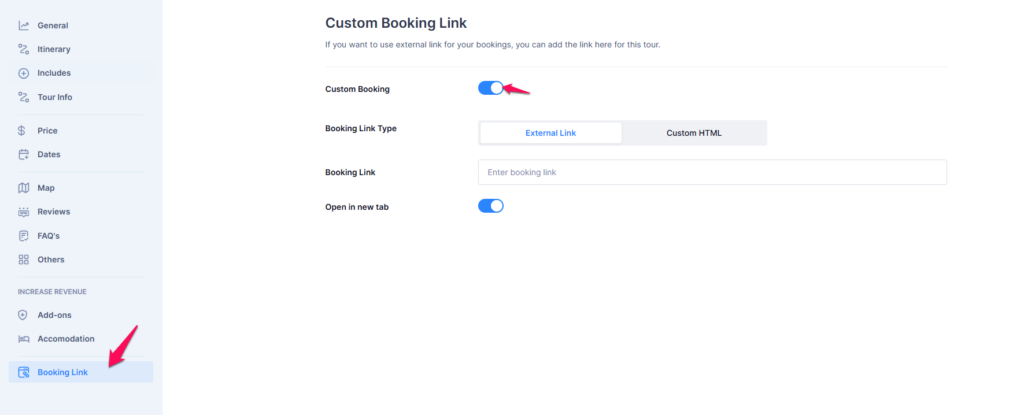
- In the tour settings, go to the Booking Link section.
- Toggle the Custom Booking switch to enable the custom booking link for this tour.
- Choose a Booking Link Type:
- External Link – Redirects customers to an external booking system.
- Custom HTML – Allows you to embed custom HTML for the booking process.
- Enter the Booking Link (if using an external link).
- Toggle Open in a New Tab if you want the link to open in a separate browser tab.
- Click Save to apply the changes.
- The custom booking link will be set for this tour.