
Creating a page in Tripcart is a simple and effective way to share important information, such as an About Us, Contact, or Services page, with your audience.
In this guide, you’ll learn how to create and publish a page step-by-step, including adding a title, writing content, uploading images, and organizing your page for easy navigation on your site.
Add New Page #
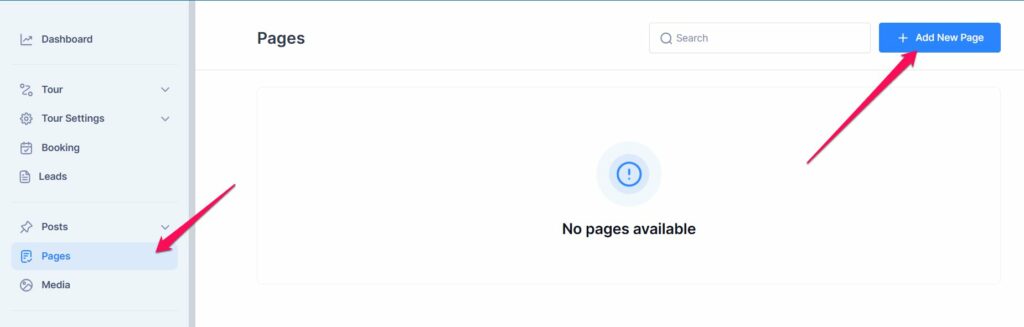
- Go to your Dashboard.
- In the Dashboard, navigate to the Pages menu.
- Click on Add New Page to start creating your page.
Add the Title and Content #
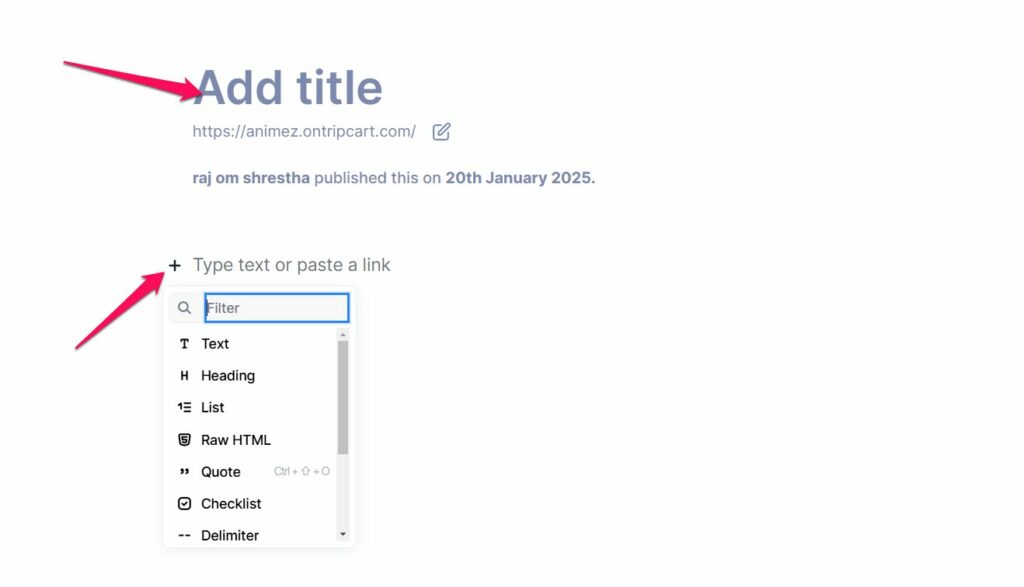
- In the editor, type your page title in the Title field.
- Add your content in the text editor below the title.
- Use the “+” icon to insert additional elements like images, headings, or lists if needed.
Customize Page Settings #
- Click the Settings icon in the top-right corner of the editor.
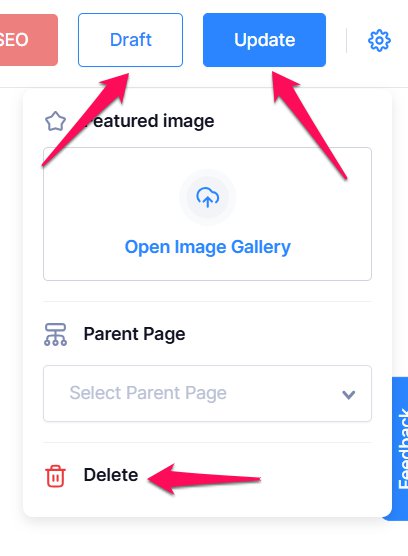
- Featured Image: Add a featured image by uploading one or selecting from your media library.
- Parent Page: If needed, assign a parent page to organize this page under another one.

Publish, Save, or Delete the Page #
- To save your progress without publishing, click Draft.
- When ready to make the page live, click Publish.
- If you want to discard the page, click Delete icon.
📧 If you face any issues or have questions, please reach out to our support team or initiate the chat located on the right.