
Team Members in Tripcart are users with specific access to manage different sections of your website. You can add team members, assign roles, and set permissions for managing tours, posts, and pages. Admin access can also be enabled or disabled as needed. Managing your team helps streamline collaboration and maintain control over your website’s content. To manage team members in Tripcart, follow these steps:
Adding a Team Member #
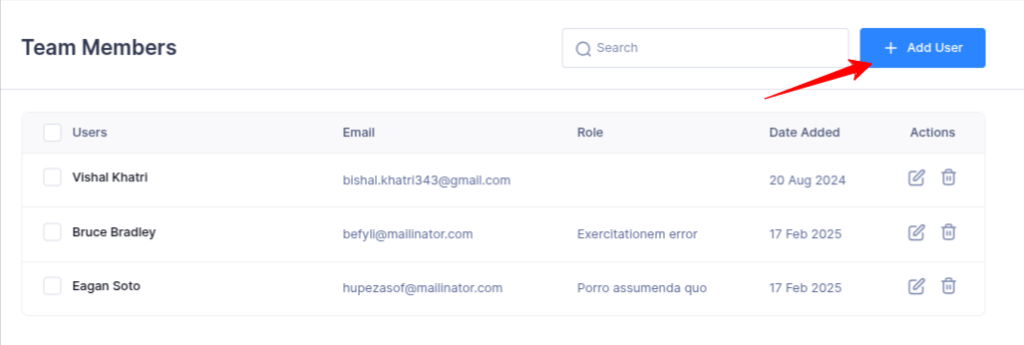
- Navigate to the Dashboard > Account Settings > Team Member.
- Click on the Add User button.
- Enter the required basic information:
- First Name: The first name of the team member.
- Last Name: The last name of the team member.
- Email: The email address where the team member will receive login details.
- Designation (Optional): The role or job title of the team member.

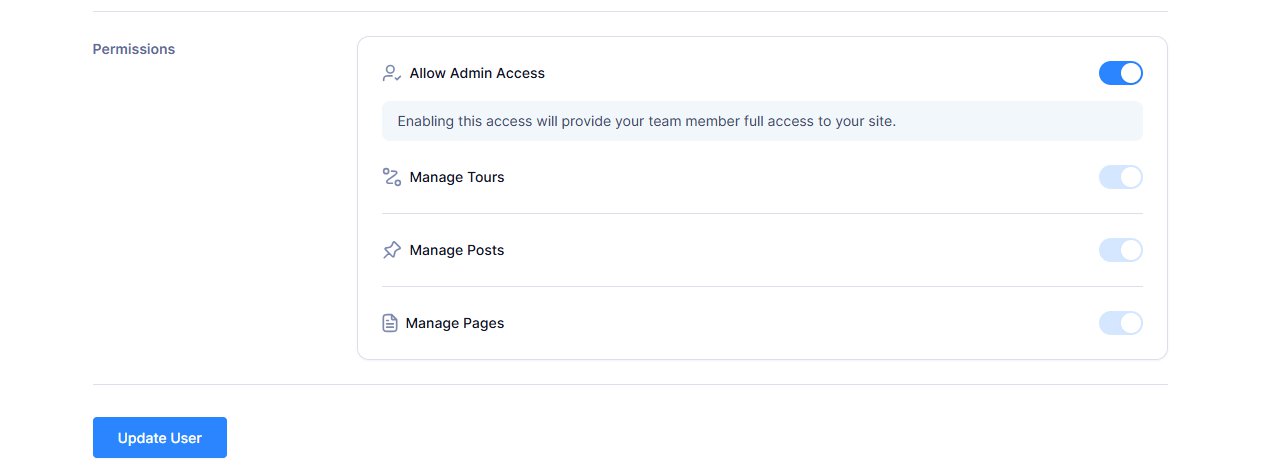
- In the Permissions section, set access levels by enabling or disabling toggle buttons:
- Allow Admin Access: Enable this to provide full access to all site features.
- Manage Tours: Enable to allow the team member to create, edit, and manage tours.
- Manage Posts: Enable to allow the team member to add and manage blog posts.
- Manage Pages: Enable to allow the team member to edit and manage website pages.
- Click ‘Add New User‘ button to proceed.
Deleting Team Member Account #
You can easily delete a team member’s account by following the steps below:
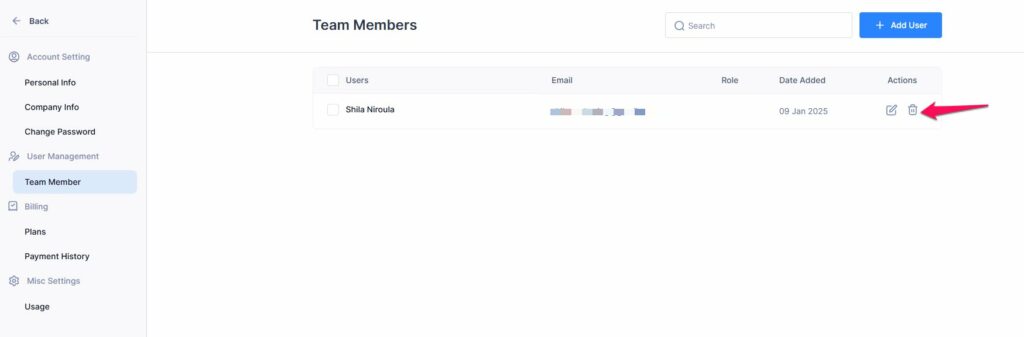
- Go to your Dashboard.
- Navigate to Account Settings.
- Select the Team Member section.
In this section, you will see a list of all existing team members. Simply locate the team member you wish to remove and click on the delete icon next to their name. This will permanently delete their account from the system.
📧 If you face any issues or have questions, please reach out to our support team or initiate the chat located on the right.