
Tripcart has integrated with the Red Dot Payment Gateway, allowing users to book trips using Red Dot Payment. To configure Red Dot Payment on Tripcart, you will need to add a Payment Label, Merchant ID, and Secret Key. Red Dot Payment is widely used in Singapore, Thailand, and Indonesia. Follow the steps below to complete the integration.
Steps to Configure Red Dot Payment Gateway #
1. Navigate to Payment Gateways:
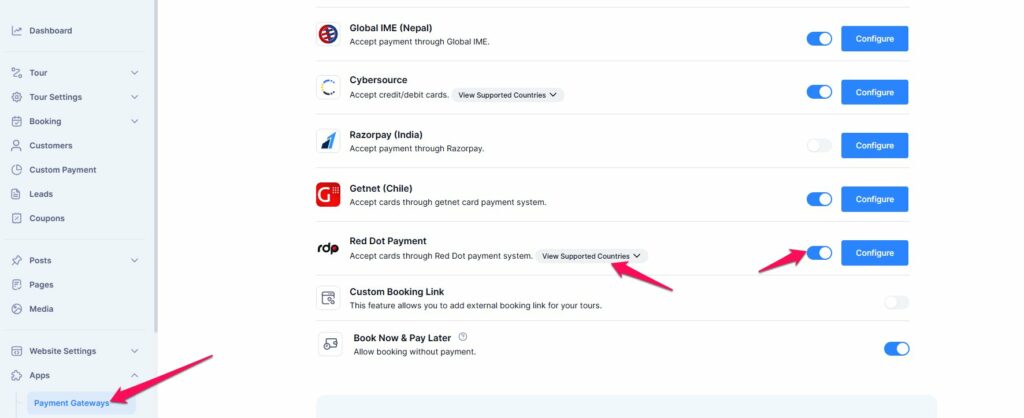
- Go to the Dashboard > Apps.
- Select Payment Gateways.
2. Enable Red Dot Payment Gateway:
- Find the Red Dot Payment Gateway in the list.
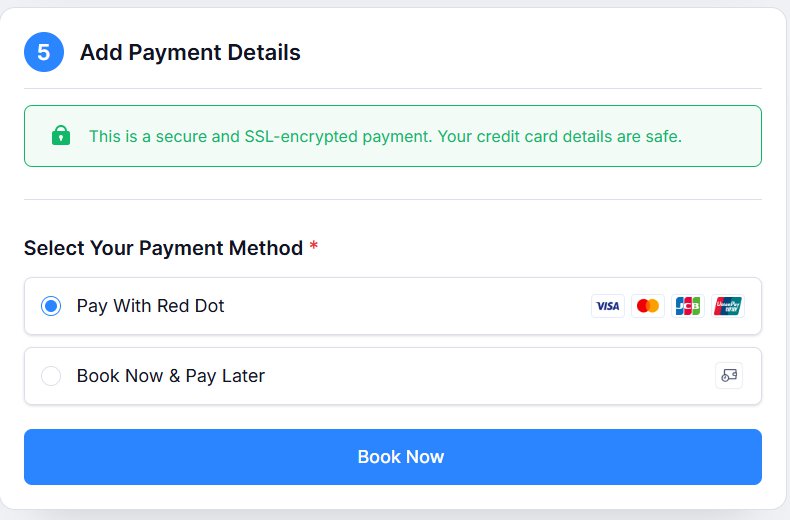
- Toggle the switch to enable the Red Dot payment gateway. This will make the Red Dot payment gateway option appear on the checkout page.
- You can also check the list of countries that support this payment gateway.
3. Configure Red Dot Payment:
- Click on the Configure button next to the Red Dot payment gateway.
- You will be prompted to add the following credentials:
- Payment Label: A custom label for the payment method as it appears on the checkout page (e.g., “Red Dot Payment”).
- Merchant ID: Provided by Red Dot when you register for a merchant account.
- Secret Key: Provided by Red Dot to authenticate transactions.
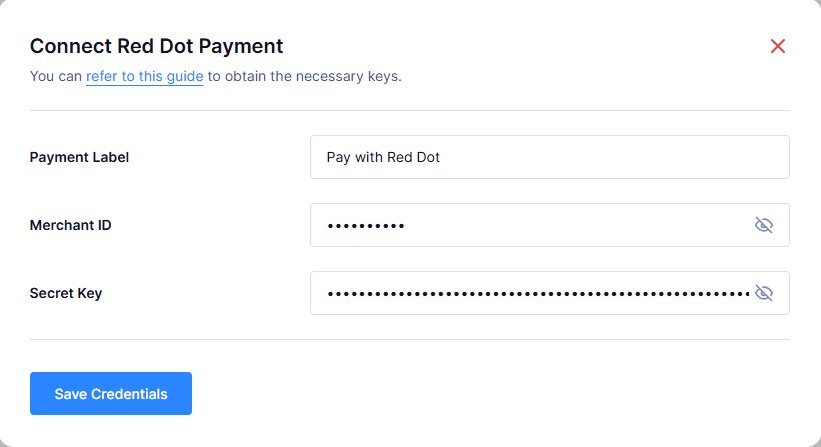
Note: Please contact Red Dot Payment to obtain the Merchant ID and Secret Key.
4. Save Credentials:
- Once you have obtained the Merchant ID and Secret Key, enter them in the respective fields on the Tripcart configuration page.
- Click Save Credentials to save the information.
By following these steps, you will have successfully configured the Red Dot payment gateway for Tripcart, allowing users to book trips using Red Dot.
📧 If you face any issues or have questions, please reach out to our support team or initiate the chat located on the right.