
Tripcart includes a cache management system that helps improve website performance by storing frequently accessed data. However, in some cases, clearing the cache is necessary to reflect recent updates, such as design changes, content updates, or bug fixes.
This guide explains how to clear all cache in Tripcart.
How to Clear Cache in Tripcart #
Follow these steps to clear all cached data:
1. Access Cache Settings #
- Log in to your Tripcart Dashboard.
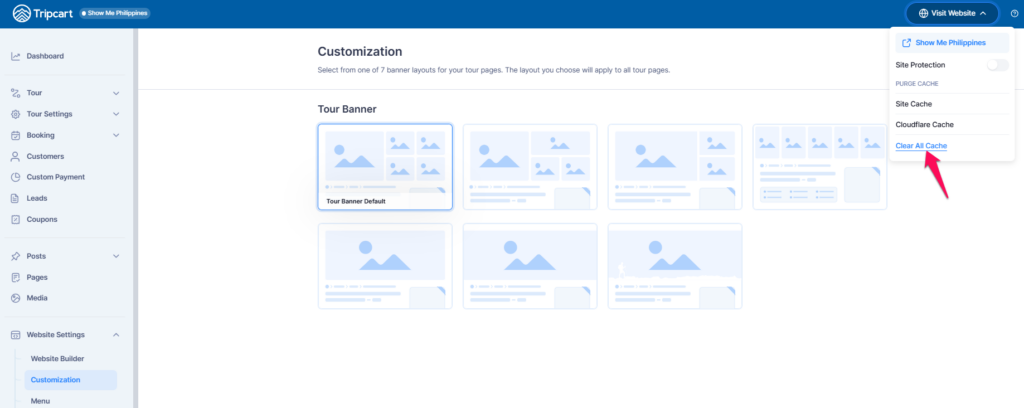
- In the top-right corner, click on the “Visit Website” dropdown.
2. Select Cache Options #
- A dropdown menu will appear with multiple cache-related options:
- Site Protection (toggle for security-related settings)
- Purge Cache (refresh specific cache types)
- Site Cache (clear the Tripcart cache)
- Cloudflare Cache (if using Cloudflare CDN)
3. Click “Clear All Cache” #
- At the bottom of the dropdown menu, click “Clear All Cache”.
- This action will clear all stored cache, including:
- Site cache
- Cloudflare cache (if applicable)
- Any cached static resources like images, styles, and scripts
- Wait a few seconds for the cache to be cleared.
Why Clear Cache? #
Clearing cache can help resolve:
- Outdated content display (recent changes not appearing).
- Slow loading times due to excessive cached data.
- Layout or styling issues caused by old cached CSS or scripts.
- Third-party integration conflicts where new API updates aren’t reflected.
- Debugging and troubleshooting by ensuring fresh data loads.
📧 If you face any issues or have questions, please reach out to our support team or initiate the chat located on the right.